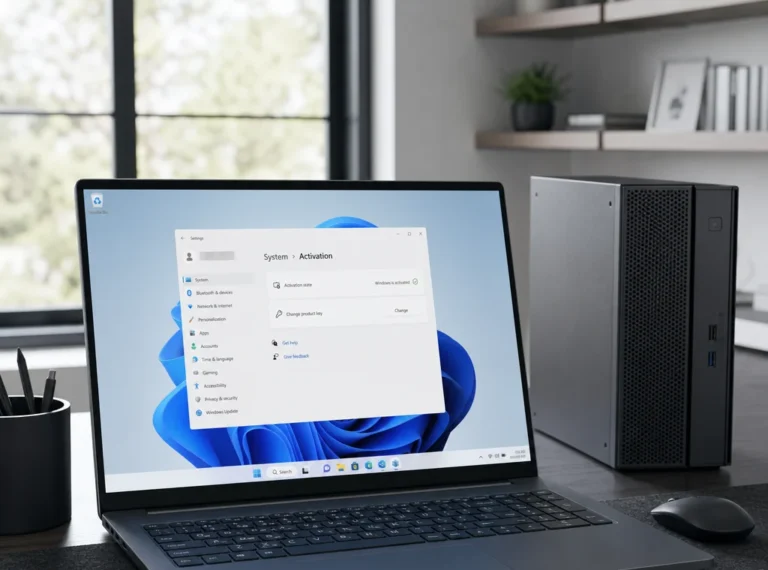
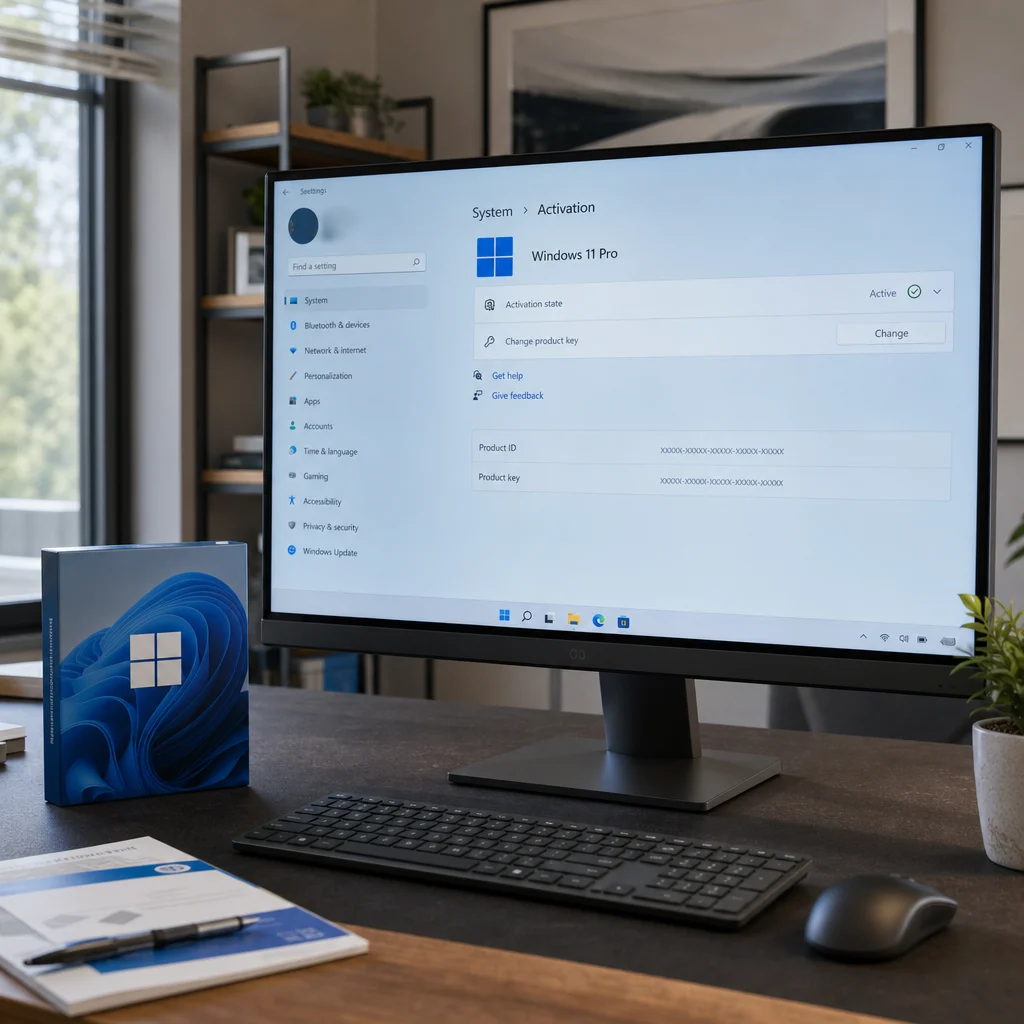
A Windows 11 key is still one of the most misunderstood parts of setting up or upgrading a PC. Many users are not sure whether they need a product key, a digital license, or a Windows 11 Pro key for their device. This guide explains how Windows 11 activation works in 2026, which license type fits different buyers, how OEM and Retail rules differ, and what to do when activation fails after a reinstall or hardware change. If your goal is to activate Windows 11 legally, avoid edition mistakes, and buy only what you actually need, this article focuses on that outcome from the start.
Slug: windows-11-key-guide-activation-licensing
Meta Description: Learn how a Windows 11 key works, when you need a Windows 11 Pro key, how digital activation works, and how to fix common activation issues legally.
Key Takeaways
- A Windows 11 key is not always required during setup if your device already has a digital license or an embedded BIOS key.
- A Windows 11 Pro key is only necessary when you need the Pro edition or you are upgrading from Home to Pro.
- OEM license and Retail license rights differ most when you replace hardware or move Windows to another PC.
- Most activation failures come from edition mismatch, hardware changes, or account and license linking issues, not from Windows installation itself.
What is a Windows 11 key and when do you need one?
A Windows 11 key is a 25-character product key used to activate a qualifying copy of Windows. In practical use, it is only one part of the licensing system. Microsoft also uses digital activation, which can activate a device without re-entering the key after the license is linked to the hardware.
You typically need a Windows 11 key in four situations: buying Windows for a new custom PC, upgrading from Windows 11 Home to Pro, reinstalling on hardware that does not auto-detect a license, or activating a device that never had a valid license before. On many branded laptops, the key is stored in firmware as a BIOS key and Windows setup reads it automatically.
That distinction matters. A product key proves license ownership at activation, while a digital license is the activation state stored against your device. Confusing those two leads many users to buy an unnecessary second key.
How does Windows 11 activation work in 2026?
Windows 11 activation now relies mostly on digital activation tied to Microsoft services and your device hardware identity. After the first successful activation, the system can often reactivate automatically after a clean installation, provided the same edition is installed again. If the device is linked to a Microsoft account, recovering activation after some hardware changes is easier.
The activation process usually follows this path:
- Windows setup checks for an embedded BIOS key.
- If no firmware key is found, it asks for a product key or lets you skip and activate later.
- Once online, Microsoft checks whether the hardware already has a matching digital license.
- If the license and edition match, Windows activates automatically.
TPM 2.0 is not an activation tool, but it remains important because it is part of Windows 11 hardware eligibility and security design. In other words, TPM 2.0 helps determine whether the device meets installation requirements, while activation confirms whether the software license is valid.
A Microsoft account is also increasingly useful. It does not replace a product key, but it can help restore digital activation after motherboard replacement or a major reinstall if the license terms allow it.
Which type of license should you choose: OEM or Retail?
The most important buying decision is not Home versus Pro. It is OEM license versus Retail license. These two channels affect transfer rights, hardware flexibility, and long-term value.
An OEM license is usually intended for a device it ships with. A Retail license is more flexible and is generally the better choice for self-built PCs, frequent hardware upgrades, or users who may move Windows 11 to a different machine later.
| License Type | Best For | Transfer Rights | Common Source | Main Limitation |
|---|---|---|---|---|
| OEM license | Prebuilt PCs, single-device use | Usually tied to the original device | PC manufacturer or system builder | Limited flexibility after major hardware changes |
| Retail license | Custom builds, enthusiasts, long-term ownership | Can usually be moved to another PC if removed from the old one | Microsoft Store or authorized reseller | Higher upfront price |
If you are comparing cost alone, OEM looks attractive. If you are comparing control and lifecycle value, Retail usually wins. That is why advanced users and IT-minded buyers often prefer Retail even when the initial purchase is higher.
Which Windows 11 edition matches your use case?
Many searches for a Windows 11 key are really edition-selection problems. Users buy the wrong edition, then discover later that activation succeeded but the feature they needed is still unavailable. The cleanest way to avoid wasted spend is to match the edition to the job first.
| Edition | Best For | Typical Trigger for Buying a Key | Notable Features |
|---|---|---|---|
| Windows 11 Home | General home use | New PC install or first-time activation | Core security, consumer features, Microsoft account integration |
| Windows 11 Pro | Work, business, power users | Home-to-Pro upgrade or new Pro installation | BitLocker, Hyper-V, Group Policy, Remote Desktop host, domain join |
If your workflow includes encryption management, virtualization, business policy control, or joining a managed environment, a Windows 11 Pro key makes sense. If you only browse, stream, study, and run normal desktop apps, Home is usually enough.
When is a Windows 11 Pro key actually necessary?
A Windows 11 Pro key is necessary when the device must run the Pro edition and does not already have a Pro digital license. That sounds obvious, but buyers often search for a Pro key because they assume it is the
Frequently Asked Questions
If Windows 11 installs automatically without asking for a key, does that mean my PC is already licensed?
Usually, yes. Many branded PCs have an embedded firmware key, and others reactivate through a digital license tied to the hardware. The safest way to confirm is to check Activation in Settings after installation. If it shows Windows is activated, you do not need to buy another key just because setup skipped the prompt.
Can I use a Windows 11 Pro key on a PC that currently runs Home without reinstalling everything?
In most cases, yes. A Pro key is typically used to upgrade the existing Home installation to Pro, not to activate Home itself. The key must match the edition you want to run. If you enter a Pro key on Home, Windows should offer an edition upgrade rather than require a full clean install.
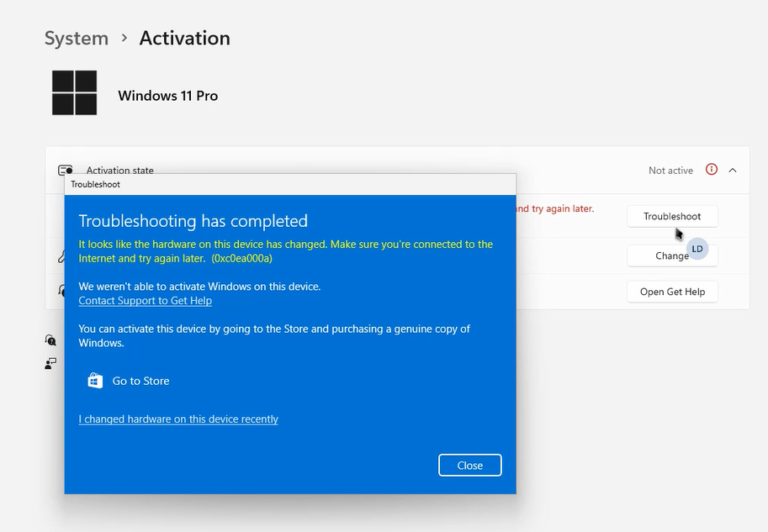
Why does Windows fail to activate after I reinstall it even though the PC was activated before?
The most common reason is an edition mismatch. If the device previously had Home activated and you reinstall Pro, the saved digital license will not match. Activation can also fail after major hardware changes or if the license was never properly linked. Before buying anything, verify the installed edition and your activation history.
Will replacing the motherboard always force me to buy a new Windows 11 license?
Not always, but it depends heavily on license type. Retail licenses are generally more flexible and may be reactivated after major hardware changes, especially when linked to a Microsoft account. OEM licenses are usually tied to the original device and are far less portable. A motherboard swap is often treated as a new PC for OEM activation purposes.
Is TPM 2.0 related to activation, or only to Windows 11 compatibility?
TPM 2.0 is mainly about eligibility and security, not proof of license ownership. It helps determine whether the device meets Windows 11 requirements and supports security features, but it does not activate Windows by itself. Activation still depends on a valid product key, a matching digital license, or both in combination with the correct edition.