Slug: windows-11-key-guide-activation-licenses-setup
Meta Description: Learn how a Windows 11 key works, how activation differs by license type, and how to install, transfer, or troubleshoot Windows 11 legally.
A Windows 11 key is not just a code you type during setup. It sits inside a larger licensing system that includes digital activation, OEM and Retail rights, edition matching, and Microsoft account linkage. If you are buying, reinstalling, upgrading, or troubleshooting Windows 11, this guide explains what the key does, when you actually need it, and how to avoid common licensing mistakes. You will learn how Microsoft handles activation in 2026, how a Windows 11 Pro key differs from Home activation, and what practical steps matter before you install or move Windows to another PC.
Key Takeaways
- A Windows 11 key activates only the matching edition, such as Home or Pro.
- Many modern PCs use digital activation, so you may not need to re-enter a product key after reinstalling.
- An OEM license is usually tied to the original device, while a Retail license is generally more flexible.
- Before installation, confirm edition, license type, and whether your Microsoft account is linked to the digital license.
What is a Windows 11 key and when do you need one?
A Windows 11 key is a 25-character product key used to validate a legitimate Windows license. In practice, Microsoft now uses both product keys and digital licenses. That means some users need a key during setup, while others activate automatically once the device goes online.
You are most likely to need a Windows 11 key in these cases:
- You bought a full Retail copy of Windows 11.
- You are upgrading from Windows 11 Home to Pro.
- You are activating a newly built custom PC.
- You are reinstalling Windows on hardware that does not already have a linked digital license.
- You changed major hardware and Windows no longer recognizes the device.
You may not need to enter a key if your PC came with Windows preinstalled, or if your digital license is already linked to the same hardware and Microsoft account. Many users confuse installation with activation. Installation gets Windows onto the device. Activation confirms the license status for that installation.
How does Windows 11 activation work in 2026?
Windows activation has become more account-aware and hardware-aware. Microsoft compares the installed edition, the license record, and the device hardware profile. If those pieces match, activation is usually automatic.
There are three common activation paths:
1. Product key activation
You enter a Windows 11 key during setup or later in Settings. Microsoft validates the key and activates the matching edition.
2. Digital activation
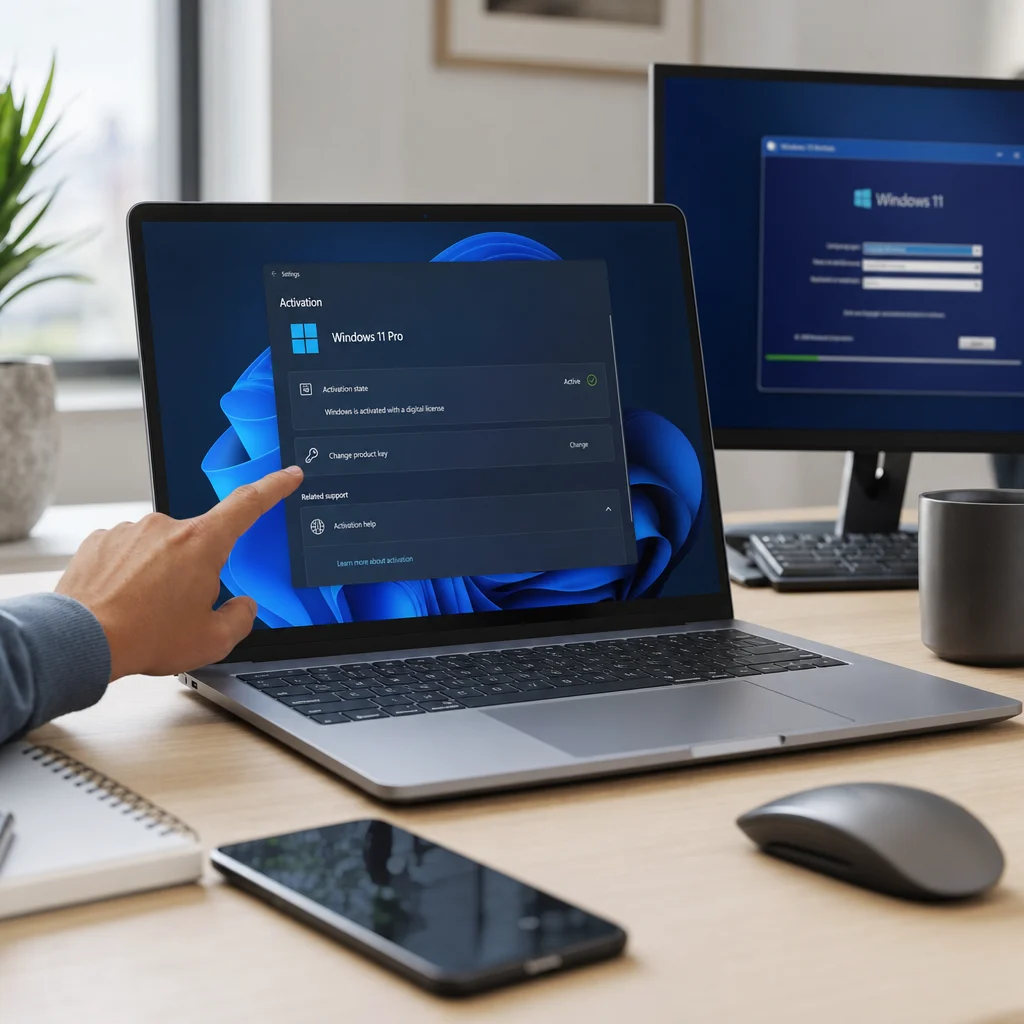
Digital activation, also called a digital license, is stored on Microsoft servers and associated with your hardware. After reinstalling the same edition on the same PC, activation often happens as soon as the device connects to the internet.
3. Firmware-based activation
On many prebuilt laptops and desktops, the OEM key is embedded in firmware. People often call this a BIOS key, although on modern systems it is typically stored in UEFI firmware. Windows Setup can detect that key automatically and install the correct edition.
For a direct explanation of how Microsoft distinguishes product keys from digital licenses, see Microsoft’s official Windows activation documentation.
Which license type fits your situation best?
The biggest licensing mistake is buying the wrong type of license for your actual use case. The key itself matters less than the rights attached to it.
OEM license: lower flexibility, device-bound in practice
An OEM license is typically supplied with a new PC by the manufacturer or system builder. It is designed for the original device. In most normal consumer scenarios, it is not meant to move freely to a different PC later.
This makes sense for:
- Prebuilt desktops and laptops
- Users who plan to keep Windows on one device long term
- Buyers who want the lowest initial cost
Retail license: better for self-builds and future upgrades
A Retail license is bought separately and is generally the better fit if you build your own PC, replace hardware often, or want clearer transfer rights. It costs more, but the flexibility is the point.
This makes sense for:
- Custom PC builders
- Enthusiasts who replace motherboards or upgrade systems
- Users who want to move Windows from an old device to a new one, subject to license terms
Digital license: the activation method, not a separate edition
A digital license is not a special version of Windows 11. It is the way activation is recorded. Both OEM and Retail licenses can result in digital activation after validation.
| License type | Typical source | Transfer flexibility | Best for |
|---|---|---|---|
| OEM license | Preinstalled on a new PC | Usually tied to original hardware | Laptops, prebuilt desktops |
| Retail license | Bought separately | More flexible, subject to terms | Custom builds, future upgrades |
| Digital activation | Activation status method | Depends on underlying license | Automatic reactivation after reinstall |
How do you choose the right Windows 11 edition before buying a key?
Edition mismatch is one of the most common reasons a valid key does not work. A Windows 11 Home key activates Home. A Windows 11 Pro key activates Pro. The key does not override edition rules.
Windows 11 Home fits many personal devices, but Windows 11 Pro makes sense when you need more control. Common Pro-focused features include BitLocker device encryption management, Hyper-V in supported scenarios, Remote Desktop host capability, broader policy controls, and business deployment options.
If you are searching for a Windows 11 Pro key, ask first whether you actually need Pro. The right question is not
Frequently Asked Questions
Can I install Windows 11 Home first and activate it later with a Pro key?
Yes, but the Pro key will not directly activate a Home installation as if they were the same edition. Windows must switch the installed edition from Home to Pro first, usually through the activation settings. If the key is valid, Windows upgrades features and then activates Pro without requiring a full reinstall in most cases.
If I replace my motherboard, will my Windows 11 activation still work?
It depends on your license type and how Windows was previously activated. A major hardware change, especially a motherboard swap, can make Microsoft treat the PC as a new device. Retail licenses are generally easier to reactivate, particularly if linked to your Microsoft account. OEM licenses often do not transfer cleanly after that kind of change.
Does linking my Microsoft account automatically make an OEM license transferable?
No. Linking your Microsoft account helps Microsoft identify your digital license and can simplify reactivation after troubleshooting or certain hardware changes, but it does not change the underlying license rights. If the original license is OEM, it is still generally tied to the first device. Account linkage improves recovery, not transfer eligibility.
Why does Windows setup sometimes skip the product key screen entirely?
Usually because setup detects an embedded OEM key in UEFI firmware or recognizes that the device previously had a digital license for that same edition. In that situation, Windows can install and activate automatically once online. This is normal, but you should still verify the activation status afterward in Settings to confirm the correct edition was applied.
Can one Windows 11 key be used for both a main PC and a virtual machine?
In most cases, no. A virtual machine counts as a separate Windows installation and typically needs its own valid license, even if it runs on the same physical computer. A Retail license can usually be moved, but it is still intended for one active device at a time. OEM licenses are even less flexible in this scenario.