Choosing the right Windows 11 key is not a minor detail. It determines whether Windows 11 activates properly, whether you can reinstall without friction, whether you can move the license to another PC later, and whether a Windows 11 Pro key is actually necessary for your setup. This guide explains what a Windows 11 key does, how product key activation differs from digital activation, how OEM and Retail licensing work, what to check before buying, and how to fix common activation problems after installation. If you want clear answers on Windows licensing in 2026 without vague claims or guesswork, start with edition matching, license type, and your hardware history.
Slug: windows-11-key-guide
Meta Description: Understand how a Windows 11 key works, compare OEM vs Retail licenses, activate Windows 11 correctly, and fix common activation issues in 2026.
Key Takeaways
- A Windows 11 key activates a specific edition. A Home key does not activate Pro, and a Windows 11 Pro key does not activate Home.
- Many devices reactivate automatically through Digital activation, a BIOS key, or a license linked to the hardware and your Microsoft account.
- An OEM license usually stays with the original device, while a Retail license is typically more flexible if you change PCs.
- Before you buy, confirm the edition you need, the transfer rights, and whether your device meets Windows 11 requirements such as TPM 2.0.
Suggested Featured Snippet: A Windows 11 key is a 25-character product key used to activate a specific Windows 11 edition. Some PCs do not need manual key entry because Microsoft stores a Digital activation record or reads an embedded BIOS key from the device firmware during installation.
What does a Windows 11 key actually do?
A Windows 11 key is a licensing credential, not an installation file and not a performance upgrade. Its job is to activate Windows 11 so the installed edition is recognized as properly licensed by Microsoft. Activation confirms rights to use that edition on that device under the terms of the license type attached to it.
This matters because people often mix up three separate things: installation media, product keys, and Digital activation. You can install Windows 11 without entering a key in some cases, but that does not mean the system is licensed. Activation still has to happen, either from a Product key, a Digital activation record, or an embedded BIOS key.
Product key vs Digital activation
A Product key is the classic 25-character code associated with a Windows license. Digital activation, sometimes called a digital license, is activation stored on Microsoft servers and tied to the device hardware. On many modern systems, both concepts overlap because the device activates from a previous key and then keeps a digital record for future reinstalls.
The practical difference is simple. A key is what you enter. Digital activation is what lets Windows reactivate later without asking again, provided the edition and hardware situation still match the stored entitlement.
When you may not need to enter a key
If you bought a laptop or desktop with Windows preinstalled, the system may contain an OEM license and an embedded BIOS key in firmware. During installation, Windows 11 can read that key automatically and install the matching edition. After the PC goes online, activation usually completes without manual input.
This is helpful, but it also creates confusion. If the BIOS key is for Windows 11 Home, a clean install may default to Home even if you intended to use Pro. In that case, you need the correct Windows 11 Pro key or a valid Pro upgrade entitlement, not repeated attempts with a Home license.
How do you choose the right Windows 11 license for your device?
The right license depends less on price and more on how you use the device. A prebuilt consumer laptop, a custom desktop, and a work machine do not have the same licensing priorities. The two consumer license types that matter most are OEM license and Retail license. Digital activation is the activation method layered on top of them, not a separate shopping category by itself.
If you expect to keep one machine for years and never move the license, an OEM license is common and often already included by the manufacturer. If you build PCs, replace motherboards, or want clearer transfer rights, a Retail license is usually the cleaner long-term choice.
| License type | Best for | Transfer to a new PC | Typical activation behavior | Main limitation |
|---|---|---|---|---|
| OEM license | Prebuilt laptops and desktops | Usually no | May use a BIOS key and auto-activate the matching edition | Tied to the original device, especially the motherboard |
| Retail license | Custom builds and users who upgrade hardware often | Usually yes, one device at a time | Activate by Product key, then retain Digital activation for reinstall | Higher upfront cost |
| Digital activation from prior entitlement or upgrade | Reinstalls or edition upgrades on the same device | Depends on underlying license | Often reactivates automatically once online and signed in | Requires the correct edition and matching entitlement |
A critical point in 2026: license flexibility matters more than many buyers think. Hardware replacement, SSD swaps, reinstallations, and edition upgrades are normal events. Choosing the wrong license type can turn a simple reinstall into an activation dispute that has nothing to do with the installer itself.
What should you check before buying a Windows 11 Pro key?
If you are shopping specifically for a Windows 11 Pro key, start with a blunt question: do you need Windows 11 Pro, or are you trying to solve a problem that is unrelated to edition? Pro is useful, but it is not inherently better for every user. Activation should match the edition you need, not the edition that sounds more advanced.
When a Windows 11 Pro key makes sense
A Windows 11 Pro key is usually the right choice if you need business-oriented features such as Remote Desktop host, Hyper-V, Windows Sandbox, Group Policy management, BitLocker management, or a more formal administrative setup. For many home users, Windows 11 Home remains enough for browsing, gaming, media, and standard productivity.
If your current device already has Windows 11 Home activated and you need those Pro features, buying a legitimate Windows 11 Pro key for an in-place upgrade is often simpler than wiping the device. The key point is to upgrade the existing activated install properly rather than mixing editions during a clean install without checking the device’s embedded license first.
What to verify before you pay
- Confirm the exact edition: Windows 11 Home and Windows 11 Pro are not interchangeable.
- Check whether your current device already has an OEM license stored in BIOS.
- Verify whether transfer rights matter to you. That determines OEM vs Retail more than price does.
- Make sure the seller clearly identifies the license type, region, support terms, and invoice details.
- Use a Microsoft account if you want the best chance of easy reactivation after future hardware or reinstall events.
The common mistake is simple: users buy a Windows 11 Pro key while reinstalling a PC that keeps forcing Windows 11 Home because of the BIOS key. The fix is not to keep retrying the same Home install. The fix is to install or upgrade to the correct edition and then activate with the matching Pro entitlement.
How do you activate Windows 11 correctly?
Activation is easy when the edition, hardware, and license type line up. It becomes messy when one of those three is wrong. In most legitimate setups, the fastest path is either automatic activation through an existing digital license or manual activation by entering the Product key in Settings.
On a new or prebuilt PC
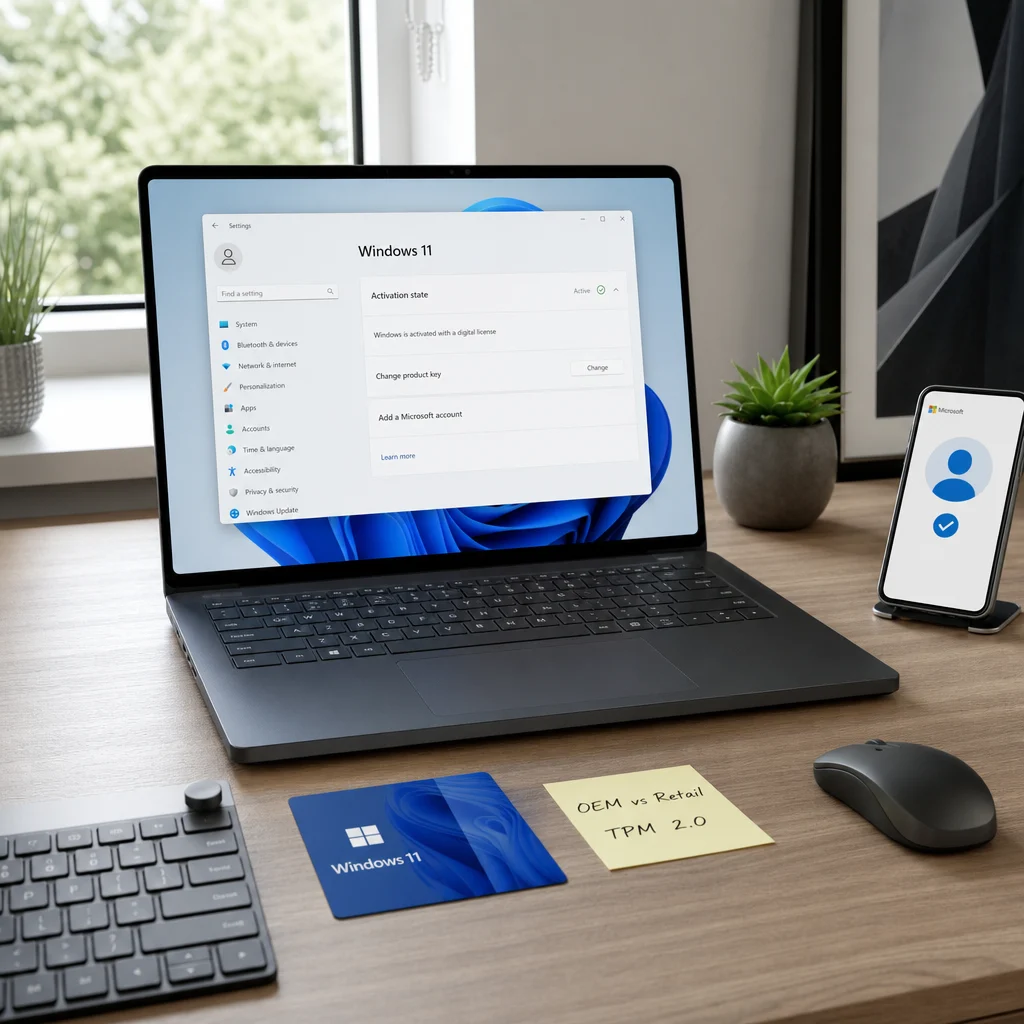
Connect the device to the internet, complete setup, and then open Settings > System > Activation. If the PC shipped with Windows 11, activation often completes automatically because the OEM license or BIOS key is already recognized. Signing in with your Microsoft account is wise because it can help link the device to its Digital activation record.
On a clean install
During setup, either enter the Product key or choose the option to proceed without one if you know the device already has a matching digital license. The important part is selecting the same edition that was previously licensed. If the PC was activated for Windows 11 Pro and you install Home, automatic reactivation will not do what you expect.
Upgrading from Home to Pro
Open Settings > System > Activation, choose the option to change the Product key, and enter the Windows 11 Pro key. Windows installs the additional Pro components and usually asks for a restart. This is cleaner than wiping the system first, especially when the device already has a working Home activation and user data on it.
Reactivating after reinstall
If the same device was previously activated, you can often click the setup option that says you do not have a key. Once Windows 11 reaches the desktop and connects online, activation returns automatically if the edition matches the stored entitlement. This is one reason Digital activation is so important: it reduces how often you actually need to handle the Product key manually.
How do Digital activation and BIOS keys affect reinstallations?
This is where most confusion starts. A BIOS key is stored in firmware, usually on OEM systems. Digital activation is stored on Microsoft’s side based on the device hardware and licensing history. Together, they decide how painless or painful a reinstall becomes.
If you reinstall the same Windows 11 edition on the same hardware, activation is often automatic. If you change the motherboard, switch editions, or move from an OEM-bound device to a different PC, the old entitlement may no longer apply. The SSD is rarely the core issue. The motherboard often is.
Real-world activation scenarios
Example 1: A new laptop ships with Windows 11 Home. You erase it and reinstall Windows 11 Home from official media. The installer reads the BIOS key, the PC goes online, and activation returns without manual entry.
Example 2: A custom desktop uses a Retail license for Windows 11 Pro. You replace the SSD and reinstall Pro. Because the main hardware identity is unchanged, Digital activation often restores once you sign in and connect online.
Example 3: A Windows 11 Home laptop was upgraded later with a Windows 11 Pro key. If you reinstall, you need to make sure the system ends up on Pro, not Home, or the device may activate only the embedded Home license instead of the Pro entitlement you expect.
These examples matter because they show a consistent pattern: activation problems are often edition or license-history problems, not random technical failures.
What system checks matter before installation and activation?
A Windows 11 key does not override hardware requirements. If the device does not meet the official support baseline, installation and long-term servicing become a separate risk from activation. Windows licensing and Windows compatibility are related, but they are not the same issue.
Before you buy a key or reinstall a system, verify hardware eligibility, especially TPM 2.0, Secure Boot capability, and supported hardware status. Microsoft maintains the official baseline in Microsoft’s Windows 11 system requirements and TPM 2.0 guidance. Also check time, date, firmware updates, and internet access, because activation services can fail when the local setup is inconsistent.
How do you fix common Windows 11 activation errors?
Most activation errors fall into a small number of categories: wrong edition, wrong license type for the scenario, loss of digital linkage after hardware changes, or a key that was never meant for the installed edition. Solve those first before assuming the key itself is defective.
Windows says the Product key is invalid
First confirm the installed edition in Settings > System > Activation. A Windows 11 Home install will reject a Windows 11 Pro key until the system switches to the correct edition path. Also re-enter the key carefully, because one wrong character is enough to trigger a failure.
If the edition is correct, make sure the PC is online and updated. Activation checks depend on communication with Microsoft services. On newly imaged systems, simply waiting for updates and then retrying can resolve what looks like a key problem but is actually a setup timing issue.
Windows was activated before, but not after hardware changes
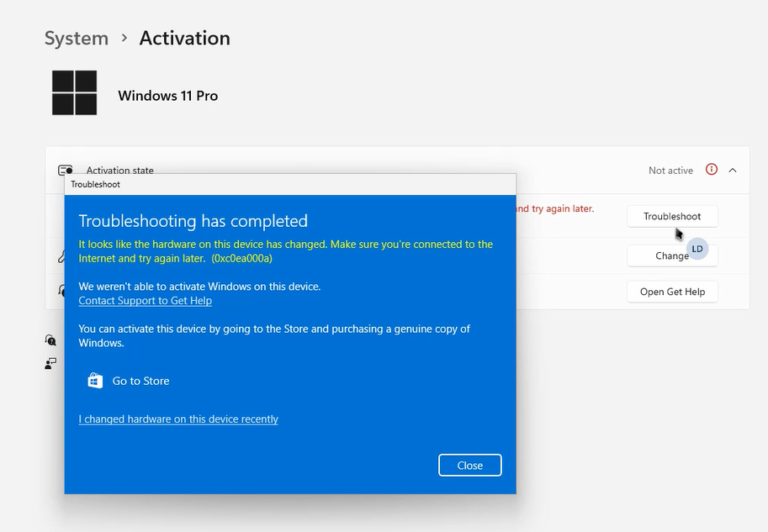
If you replaced major hardware, especially the motherboard, the digital license may no longer match the device identity stored by Microsoft. Sign in with the same Microsoft account previously used on the activated device and run the Activation Troubleshooter from the Activation page. Retail licenses have the best chance of clean reactivation in this scenario.
If the old license was an OEM license, expectations should be realistic. OEM activation is usually intended for the original device, and major board changes can break that relationship. This is not a bug. It is a licensing boundary.
The PC keeps activating the wrong edition
This usually happens on devices with a Home BIOS key. You boot from installation media, expect Pro, and the installer or first activation route returns you to Home. The solution is to install or upgrade to Pro intentionally and then apply the Windows 11 Pro key, rather than relying on the firmware to guess your intent.
You reinstalled, skipped the key, and activation did not return
Check whether you installed the same edition that was previously activated. Then confirm you are signed in with the same Microsoft account and that the device is online. If activation still does not restore, use the troubleshooter and review whether the earlier activation was tied to OEM or Retail rights.
Do you actually need a Windows 11 Pro key?
For many buyers, the honest answer is no. Windows 11 Home is enough if your device is for personal use, gaming, streaming, general office tasks, schoolwork, or light remote work. Buying a Windows 11 Pro key without a feature-based reason is often unnecessary spending.
You probably do need Pro if you manage devices more formally, host Remote Desktop sessions, use Hyper-V, rely on Windows Sandbox, need stronger administrative controls, or want a business-oriented setup. In that case, the key question is not whether Pro is better in theory. It is whether the Pro-specific features change your real workflow.
That practical framing matters because licensing decisions should follow user needs, not product naming. If Home already fits the job, focus on getting a legitimate, stable activation path. If Pro is required, buy the correct Windows 11 Pro key and apply it to the right edition from the start.
FAQ
What is the difference between a Windows 11 key and a digital license?
A Windows 11 key is the 25-character Product key used to activate a specific edition. A digital license is the activation record stored by Microsoft and tied to your device hardware, and often linked to your Microsoft account for easier reactivation.
Can a Windows 11 Home key activate Windows 11 Pro?
No. Activation keys are edition-specific. A Home key activates Home, and a Windows 11 Pro key activates Pro. If you need Pro, the installed edition must be upgraded or installed as Pro before activation can succeed correctly.
Do I need to enter the key again after reinstalling Windows 11?
Not always. If the same device already has a matching digital license or BIOS key for that edition, you can often skip manual entry during setup and let Windows reactivate once it goes online.
Does an OEM license transfer to another PC?
Usually no. An OEM license is generally tied to the original device it came with. If transfer flexibility matters, a Retail license is the safer consumer option.
What happens to activation after a motherboard replacement?
A major motherboard change can break Digital activation because Microsoft may see the system as a new device. Retail licenses are usually easier to reactivate in that situation. OEM licenses are far more limited because they are typically bound to the original hardware.
Is a Microsoft account required for activation?
Not in every case, but using a Microsoft account is strongly recommended. It can link your Digital activation to your account, which improves your odds of successful reactivation after reinstalling Windows 11 or changing hardware.
Where is the BIOS key stored?
A BIOS key is embedded in the device firmware by the manufacturer on many OEM systems. You often do not need to retrieve it manually because Windows 11 setup can read it automatically and activate the matching edition after installation.
Suggested Internal Links
- How to find your Windows 11 product key on a laptop or desktop
- Windows 11 Home vs Pro: which edition should you buy?
- OEM vs Retail Windows license: transfer rules explained
- How to reactivate Windows 11 after a motherboard replacement
- How to clean install Windows 11 without losing digital activation
- Common Windows 11 activation errors and what they mean
If you are making a purchase or planning a reinstall, check the installed edition first, confirm whether the device already has an OEM license or BIOS key, and sign in with your Microsoft account before you change anything major. That sequence prevents most avoidable activation issues and makes the right Windows 11 key choice obvious.
Frequently Asked Questions
Can one Windows 11 key be used on more than one PC if I sign in with the same Microsoft account?
Usually no. A standard Windows 11 license activates one device at a time, even if the same Microsoft account is used on several PCs. The account can help recover a digital license after reinstalling, but it does not automatically turn one key into a multi-device license. Transfer rights depend on whether the license is Retail or OEM.
Why does Windows 11 keep installing Home when I want Pro?
This often happens when the PC has an embedded BIOS key for Windows Home. During installation, Windows reads that firmware key and selects the matching edition automatically. If you actually need Pro, you must use a valid Windows 11 Pro key or Pro upgrade entitlement. Reinstalling repeatedly with the Home license will not switch the edition.
Will changing hardware break my Windows 11 activation?
Minor changes such as replacing storage usually do not cause major licensing problems, especially if the device already has a digital activation record. A motherboard change is more significant because activation is often tied to hardware identity. Retail licenses are generally easier to reactivate or move after major upgrades, while OEM licenses usually stay with the original device.
If Windows 11 installs without asking for a key, is it already licensed?
Not necessarily. Installation and licensing are separate. Windows may skip the key screen because it detects a BIOS key, a previous digital activation, or lets you continue without entering anything. The system is only properly licensed once activation completes for the correct edition on that device. Always verify activation status after setup instead of assuming it is valid.
Does buying a valid Windows 11 key also solve hardware compatibility issues like TPM 2.0?
No. A product key only handles licensing and activation. It does not bypass Windows 11 hardware requirements or make an unsupported PC compliant. Before buying any key, confirm that the device meets the needed requirements, including TPM 2.0 where applicable. Otherwise you may end up with a valid license but still face installation or support limitations.