If you are comparing a Windows 11 key, the real question is not just price. It is whether the key matches your edition, device, and long-term use. This guide explains what a legitimate product key does, how Windows activation works, when a digital license is enough, and where a Windows 11 Pro upgrade makes sense. You will also learn how OEM and Retail licensing differ, why a BIOS key matters on many prebuilt PCs, and how to fix common activation problems without guesswork. The goal is simple: help you choose the correct Windows 11 setup the first time.
Slug: windows-11-key-activation-license-guide
Meta Description: Learn what a Windows 11 key does, how activation works, and whether OEM, Retail, or Pro is the right legitimate choice for your PC.
What should you know first?
Key Takeaways
- A Windows 11 key activates a specific edition, not every edition of Windows 11.
- Many new PCs already store an OEM license in firmware, so manual key entry may be unnecessary.
- A Retail license is usually the flexible option for users who replace hardware or move to a new PC.
- A Windows 11 Pro key only works for Pro activation; it does not activate Home.
What is a Windows 11 key in simple terms?
A Windows 11 key is a legitimate product key or license entitlement used to activate Windows 11 and confirm that the installed edition is properly licensed by Microsoft. In practice, activation can happen through a typed key, a BIOS key stored in firmware, or digital activation linked to your hardware and sometimes your Microsoft account.
The important distinction is between installation and activation. You can install Windows 11 without activating it immediately, but personalization limits and activation notices remain until the license is validated. Activation confirms that your copy of Windows 11 matches a valid license path.
That license path depends on edition and origin. A Home license activates Home. A Pro license activates Pro. An OEM license behaves differently from a Retail license, even if both activate successfully on day one.
Which kind of license fits your setup?
Choosing the wrong license type is one of the most common causes of wasted money. The label matters because it affects transfer rights, support expectations, and how activation behaves after hardware changes.
When does an OEM license make sense?
An OEM license is commonly associated with new laptops, branded desktops, and some system-builder installations. It is usually tied to the first device on which it is activated, and on many prebuilt systems the key is embedded in firmware as a BIOS key.
For a standard home or office PC that will not change motherboards, OEM is often straightforward. Reinstall the same edition of Windows 11, connect to the internet, and activation may happen automatically because the firmware key or prior digital activation is detected.
When is a Retail license the better choice?
A Retail license is usually the better fit for custom PC builders, power users, and anyone who expects to replace a motherboard or move Windows to another computer later. It typically offers more flexibility than OEM licensing, provided the license is used on one device at a time.
If you upgrade hardware often, Retail is the safer long-term decision. It reduces friction when activation needs to be restored after a major rebuild.
How does digital activation change the process?
Digital activation means Windows 11 can activate without manually entering a product key every time. Microsoft records an activation entitlement tied to hardware, and in some cases linking that license to your Microsoft account helps when you need to reactivate after certain changes.
Digital activation does not erase edition rules. If your device has a digital license for Windows 11 Home, installing Windows 11 Pro will not activate until a valid Pro license is applied.
How do OEM, Retail, and digital licenses compare?
| License type | Best for | Transfer flexibility | Typical activation behavior |
|---|---|---|---|
| OEM license | New prebuilt PCs, stable hardware | Low | Often activates automatically from firmware or prior device record |
| Retail license | Custom builds, frequent upgrades | Higher | Can be reactivated on a new device when properly reassigned |
| Digital activation | Reinstalls and account-linked setups | Depends on underlying license | No manual key entry may be needed after reinstall |
How do you know if your PC already has a valid key?
Before buying any Windows 11 key, check whether your PC is already licensed. Many users purchase a second key when they did not need one.
What happens on most new laptops and branded desktops?
Many systems from major manufacturers include a firmware-embedded key. During installation, Windows 11 may detect that BIOS key automatically and install the matching edition. If your PC shipped with Home, a clean install often returns you to Home unless you deliberately supply a Pro edition path.
Why does the BIOS key matter?
A BIOS key reduces manual setup work. It also explains why some users keep landing on Windows 11 Home during reinstall: the installer reads the stored key and selects that edition. That is not an error. It is expected behavior.
When does a Microsoft account help?
If your Windows license has been linked to your Microsoft account, reactivation is often easier after troubleshooting or reinstalling. This matters most when the original device already had a valid digital license and you want Windows to recognize it again after setup.
How do you activate Windows 11 the right way?
The correct activation path depends on whether you are reinstalling, upgrading editions, or setting up a new PC from scratch.
What should you do during a clean installation?
If the PC already has a valid firmware key or digital license for the edition you want, you may not need to enter anything during setup. Install the matching edition, go online, and let activation check the device history.
If you are using a new Retail key, enter it during installation or after setup in Activation settings. The critical point is edition matching. A Windows 11 Pro key activates Pro, not Home.
What should you do after installation?
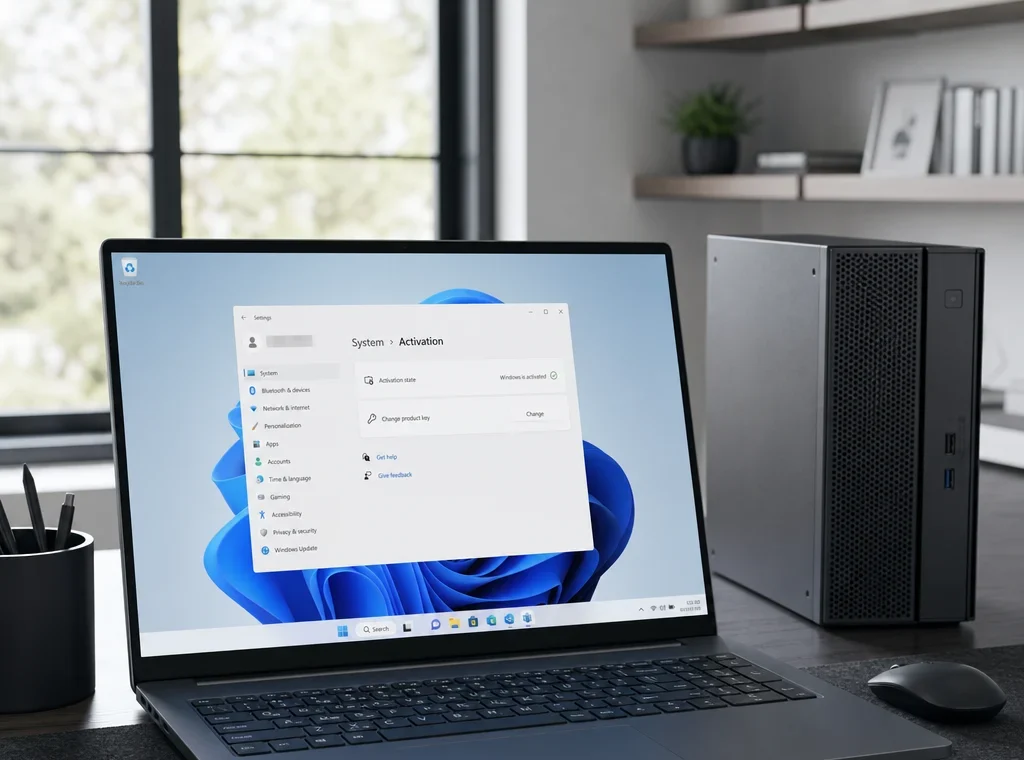
Open Settings, then System, then Activation. Check whether Windows reports an active digital license, a key requirement, or an edition mismatch. This page gives the clearest starting point for diagnosis.
Microsoft documents how activation, digital licenses, and edition matching work in Microsoft’s official guide to activate Windows. If your edition, key type, and device history do not line up, activation usually fails for predictable reasons.
How do you move from Home to Pro?
Upgrading from Home to Pro requires a valid Windows 11 Pro license path. That may be a Pro product key or a legitimate entitlement purchased through Microsoft or an authorized retailer. A Home key cannot unlock Pro features such as BitLocker management, domain join, Hyper-V, or Group Policy tools.
What changes when you need a Windows 11 Pro key?
A Windows 11 Pro key is not automatically better than Home. It is better only if your workflow needs Pro features. Many buyers overpay for Pro without a real use case.
Choose Pro if you need:
- BitLocker device encryption management beyond basic consumer defaults
- Remote Desktop host functionality
- Hyper-V virtualization
- Domain or Azure AD style work enrollment requirements
- Local Group Policy and more advanced administration tools
Choose Home if the PC is mainly for web use, school, media, office apps, and gaming. Home activates cleanly on supported hardware and is enough for many personal systems.
Also remember that Windows 11 installation readiness is separate from activation readiness. Supported hardware, including TPM 2.0, still matters for a compliant Windows 11 setup, even if you already have a valid license.
What problems cause activation errors most often?
Most activation failures are not mysterious. They come from a short list of setup mistakes.
Is the installed edition wrong?
This is the first thing to verify. If your PC has a Home license but you installed Pro, activation will not complete until the edition matches or you apply a valid Pro entitlement.
Did major hardware change break the old activation record?
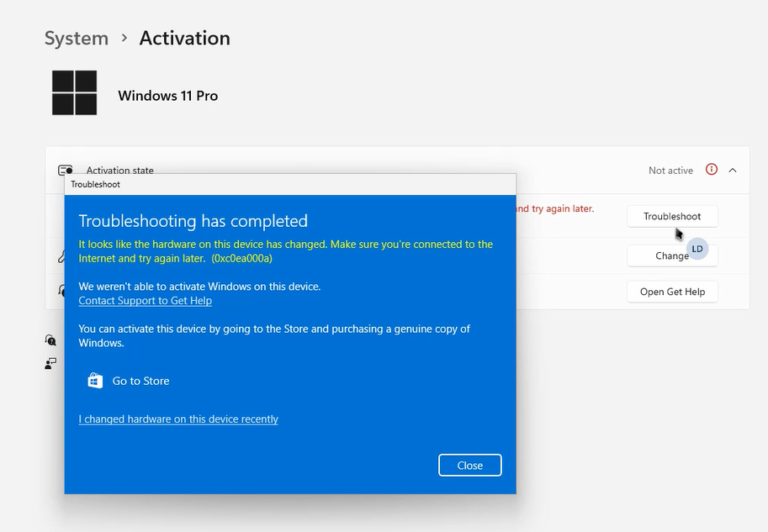
Replacing a motherboard can make Windows treat the device as a different PC. That matters especially for OEM licensing, which is generally tied to the original device. Retail activation is usually easier to restore after major changes.
Is the key valid but not accepted?
Check for simple causes first:
- Typing errors in the 25-character product key
- Region or seller issues affecting the purchase source
- A key for a different edition
- A key that has already been associated elsewhere and cannot be reused in your scenario
- Temporary Microsoft activation service issues
What troubleshooting steps actually save time?
Use this sequence:
- Confirm whether you installed Windows 11 Home or Windows 11 Pro.
- Check Activation settings for the exact message.
- Connect the device to the internet and restart once.
- Sign in with the Microsoft account previously linked to the license, if applicable.
- Run the Activation troubleshooter.
- If the PC is a prebuilt system, consider whether the BIOS key is forcing a different edition path.
If the device belonged to a workplace or school, stop and verify ownership and licensing status before changing anything. Organization-managed devices often follow different activation rules than consumer PCs.
What do real-world setups look like?
Examples make licensing rules easier to apply.
Example 1: New laptop with firmware key
A new laptop ships with Windows 11 Home. You erase the drive and reinstall Windows 11. Setup reads the BIOS key, installs Home, and activates after the first internet connection. No manual product key entry is needed.
Example 2: Custom-built gaming PC
You build a desktop, buy a Retail Windows 11 license, and later replace the motherboard. Activation may need manual attention, but Retail licensing is the sensible path because the system is expected to evolve.
Example 3: Home user upgrading to Pro
Your current PC is activated with Home, but you now need Hyper-V and Remote Desktop host. The right move is not reinstalling blindly. It is applying a valid Windows 11 Pro key or upgrade entitlement so the edition changes cleanly.
Which buying checks protect you from mistakes?
A careful purchase process prevents most licensing headaches.
- Verify the edition you need before buying any product key.
- Prefer Microsoft or clearly reputable retailers with proper invoices and support.
- Know whether you want OEM behavior or Retail flexibility.
- If you already own a licensed PC, check for digital activation before buying anything new.
- For a new installation, confirm the system meets Windows 11 requirements, including TPM 2.0 support where applicable.
The strongest buying principle is simple: do not shop for a cheap code first. Shop for the correct license path first. The cheapest wrong key is still a bad purchase.
What should readers explore next on your site?
- Windows 11 Home vs Pro: Which Edition Should You Buy?
- How to Check if Your Windows 11 License Is OEM or Retail
- How Digital Activation Works in Windows 11
- What to Do After a Motherboard Change in Windows 11
- How to Reinstall Windows 11 Without Losing Activation
- Where to Find a BIOS Key on a Windows 11 PC
FAQ
Can I use the same Windows 11 key on two PCs?
Not at the same time. A legitimate consumer license is generally meant for one active device. Whether it can move later depends mainly on whether it is a Retail or OEM license.
Do I need a product key to reinstall Windows 11?
Not always. If your PC already has a BIOS key or digital activation for the same edition, Windows 11 may reactivate automatically after reinstalling and going online.
How do I know if I need a Windows 11 Pro key?
You need a Windows 11 Pro key only if you want the Pro edition and its features, such as Hyper-V, Remote Desktop host, or business-focused management tools.
Is a BIOS key the same as a digital license?
No. A BIOS key is stored in firmware on some PCs. A digital license is an activation entitlement recorded for the device by Microsoft. They can work together, but they are not the same thing.
Can I activate Windows 11 without a Microsoft account?
Yes, in some scenarios activation can still occur through a product key or firmware key. However, linking a digital license to a Microsoft account can make reactivation easier after hardware changes.
Why did Windows 11 install Home when I wanted Pro?
Usually because the installer detected a Home BIOS key in firmware or because the device already had a Home license history. You need a valid Pro license path to switch editions properly.
Does TPM 2.0 activate Windows 11?
No. TPM 2.0 is a hardware and security requirement for supported Windows 11 installations. It does not replace a product key or digital activation, but it still matters for a compliant setup.
If you are about to buy or apply a Windows 11 key, check your current edition, confirm whether the PC already has digital activation, and decide whether OEM stability or Retail flexibility fits your next hardware move. That five-minute check is usually what separates a clean activation from a frustrating reinstall.
Frequently Asked Questions
If my PC came with Windows preinstalled, how can I tell whether I need to enter a key at all?
On many prebuilt PCs, the original OEM key is stored in firmware, so Windows can reactivate automatically after reinstalling the same edition. If Setup skips the key prompt or activation completes once you go online, that is usually why. You mainly need to enter a key manually when the installed edition does not match the license already tied to the device.
Why does Windows sometimes install Home automatically when I want Pro?
If your motherboard firmware contains a Windows 11 Home OEM key, the installer may detect it and default to Home. That does not mean Pro is impossible, only that the device already has a valid Home license path. To use Pro, you must install or upgrade to the Pro edition and then activate it with a genuine Windows 11 Pro license.
Will changing my SSD, RAM, or graphics card usually break activation?
Minor hardware changes such as replacing storage, adding RAM, or swapping a GPU usually do not cause activation trouble by themselves. The bigger trigger is a motherboard replacement, because Microsoft often treats that as a new device. Retail licenses are generally easier to reactivate after major changes, while OEM licenses are normally tied to the original machine.
Can I reinstall Windows 11 without losing activation if I no longer have the original key?
Yes, often you can. If the PC already has a digital license or a firmware-embedded OEM key for the same edition, Windows 11 can reactivate automatically after reinstallation once you connect to the internet. The important part is installing the correct edition. If the old license was Home, reinstalling Pro will not activate unless you have a valid Pro entitlement.
Is a Windows 11 Pro upgrade worth it for a normal home PC?
Not always. Pro makes sense when you specifically need features such as BitLocker management, Remote Desktop host, domain join, or more advanced administrative controls. For basic web use, streaming, gaming, and schoolwork, Home is often enough. The key point is that Pro should be chosen for feature needs, not because people assume it activates or performs better by default.